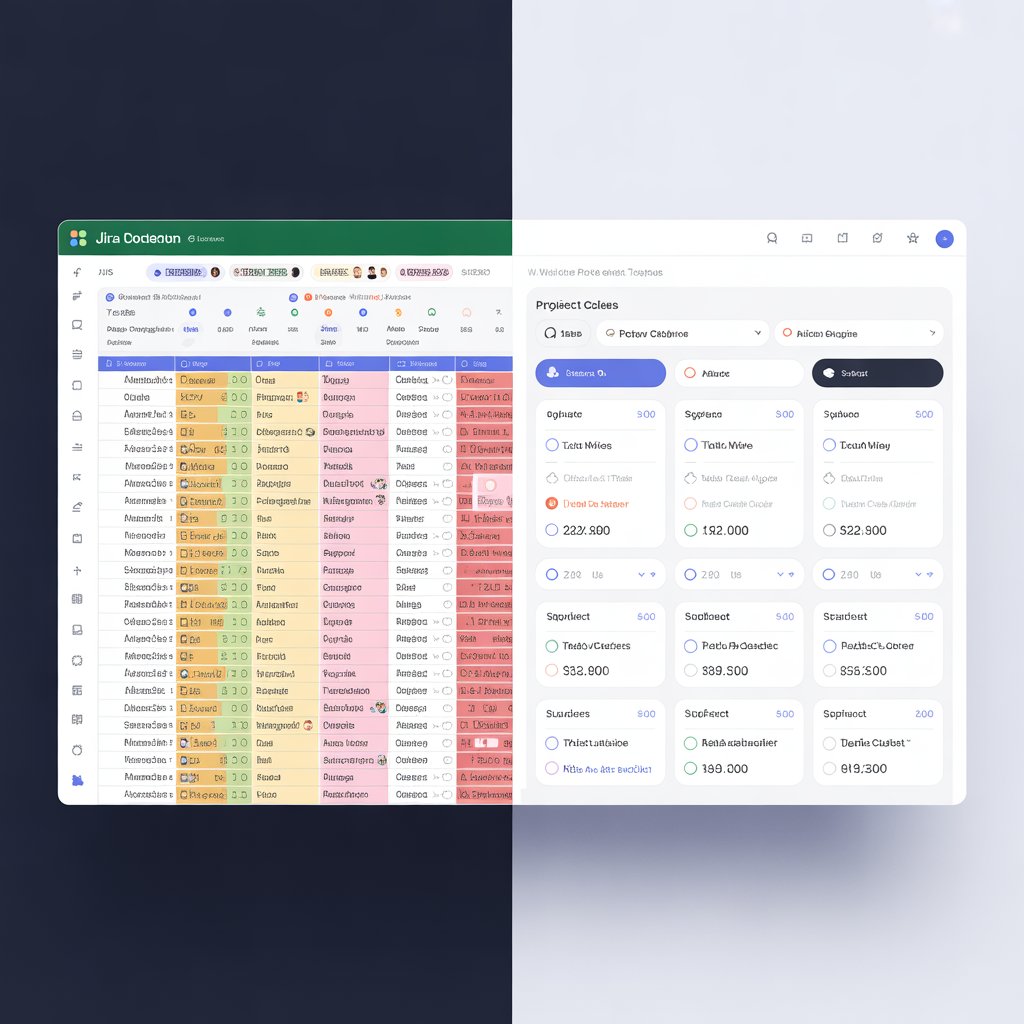
Ah, Excel. The faithful spreadsheet. For years, it’s been the default for everything from household budgets to, yes, even project management. And for simple tasks, it’s brilliant.
But let’s be honest: when you’re managing an IT project with multiple team members, dependencies, bugs, and shifting priorities, Excel quickly becomes a tangled mess. It’s hard to track, hard to update, and a nightmare for collaboration.
If you’re still wrestling with spreadsheets to manage your projects, it’s time for an upgrade. For IT project management, Jira is the industry standard. And while it might seem intimidating at first, it’s far more intuitive and powerful than you think.
This beginner’s guide will get you started with Jira, showing you why it’s a game-changer for your projects.
Why Ditch Excel for Jira? (The “Why”)
Before we dive in, let’s understand why Jira is superior for project management:
- Real-Time Collaboration: Multiple team members can access, update, and track tasks simultaneously, without version control chaos.
- Visual Workflow: See exactly where every task stands, who’s working on it, and what’s next, often on a visual board.
- Built for Software Development: Jira was designed specifically for software teams, handling issues, bugs, features, and releases seamlessly.
- Traceability: Every change, comment, and status update is logged, providing a clear history of your project.
- Reporting & Insights: Generate powerful reports on team velocity, burndown, and project progress in seconds, not hours.
- Integration: Connects with hundreds of other tools (code repositories, communication apps, testing suites).
Getting Started with Jira: The Basics (The “How”)
Don’t worry about every feature just yet. Focus on these core concepts.
1. Understanding “Projects” and “Boards”
- Project: In Jira, a project is a container for all your related work. This could be “Website Redesign,” “New Mobile App Development,” or “IT Infrastructure Upgrade.”
- Board: Within your project, you’ll use a “Board” to visualize your work. The two most common types are:
- Scrum Board: Ideal for Agile teams, showing sprints and a backlog.
- Kanban Board: Great for continuous flow work, visualizing tasks moving through stages like “To Do,” “In Progress,” “Done.”
Action: Create your first project and choose a Scrum or Kanban board. Start simple!
2. Creating “Issues” (Your Tasks)
In Jira, every piece of work is an “issue.” But “issue” is a generic term. Jira lets you define different types of issues:
- Epic: A large body of work that can be broken down into smaller stories. (e.g., “Implement User Authentication”)
- Story: A user-centric requirement or feature. (e.g., “As a user, I want to log in with my email and password.”)
- Task: A general piece of work. (e.g., “Set up database connection”)
- Bug: A problem or defect in the software. (e.g., “Login button is unresponsive”)
Action: Create a few different issue types related to a simple project idea. Practice breaking an Epic into Stories or Tasks.
3. Key Fields on an Issue
Each issue has several key fields that you’ll use constantly:
- Summary: A concise title for the issue.
- Description: Detailed information, requirements, or steps to complete the task.
- Assignee: Who is responsible for doing the work?
- Reporter: Who created the issue?
- Status: Where is this task in its workflow? (e.g., “To Do,” “In Progress,” “In Review,” “Done”). This is how you track progress!
- Priority: How important is this issue?
- Labels/Components: For categorization.
- Due Date: When should this be completed?
Action: Fill out these fields for your created issues. Pay close attention to “Assignee” and “Status.”
4. Moving Issues Through Your Workflow
This is the magic of Jira boards. As work progresses, you simply drag and drop issues from one status column to the next.
- Someone starts working on a “Story”? Drag it from “To Do” to “In Progress.”
- A “Bug” is fixed? Drag it from “In Progress” to “Done.”
This visual representation immediately shows the project’s real-time status to everyone. No more asking for updates or sending spreadsheets around.
Action: Practice moving your issues across the board. Observe how the “Status” field automatically updates.
Your First Steps in Jira: A Checklist
- Set Up Your Account: Many companies use Jira Cloud, which is easy to get started with.
- Create Your First Project: Keep it small and simple.
- Choose a Board Type: Start with Kanban for simplicity, or Scrum if you know you’ll be using sprints.
- Create Issues: Break down a simple project into Epics, Stories, and Tasks.
- Assign & Update: Assign issues to yourself and practice moving them through the workflow.
- Explore the Reports: Look at the built-in reports (like the Sprint Report or Burndown Chart) to see how Jira visualizes data.
Beyond the Spreadsheet: The Project Manager’s Advantage
Switching from Excel to Jira might feel like a big leap, but it’s an essential one for any aspiring IT Project Manager. It frees you from administrative overhead and empowers you to focus on what truly matters: guiding your team, collaborating effectively, and delivering successful projects.
Embrace the change. Your team (and your sanity) will thank you for it.
Ready to ditch the spreadsheets and streamline your IT projects?
If you need a guiding hand to set up Jira for your team or optimize your project workflows, I’m here to help you make the leap.
[Contact me] for a consultation, and let’s get your projects on the fast track.